


Let’s face it, EA doesn’t have the best track record when it comes to server stability across any of its franchises. But for whatever reason, sports games seem to struggle the most when it comes to servers being down, and that’s certainly been the case in College Football 25 since its July 2024 release. While the servers are up and functioning most of the time, there are often instances when you want to square up against an online opponent and the servers just aren’t cooperating.
While there’s not much you can do if the servers are completely down for one reason or another, you often don’t know for sure if the servers are offline, or if there’s a problem on your end. Fortunately, there are some fixes you can try to get College Football 25 back online. However, you’ll also want to understand all the different ways to see whether or not EA’s servers are acting up for the — check notes — 187,644th time.
How To Check College Football 25 Server Status


Operation Sports App
Your ultimate companion for sports gaming. Access in-depth coverage, thoughtful discussion, and a community built around the games—and sports—you love.
Your ultimate sports gaming companion.
To start, let’s see all the methods you can use to check the current status of the College Football 25 servers. There are a few different ones to try and it’s important to know each one, as sometimes one method is lagging behind another in terms of showing there’s a problem.
Below, I’ll list every reliable way to check the College Football 25 server status:
Go To EA’s Website Or Social Media
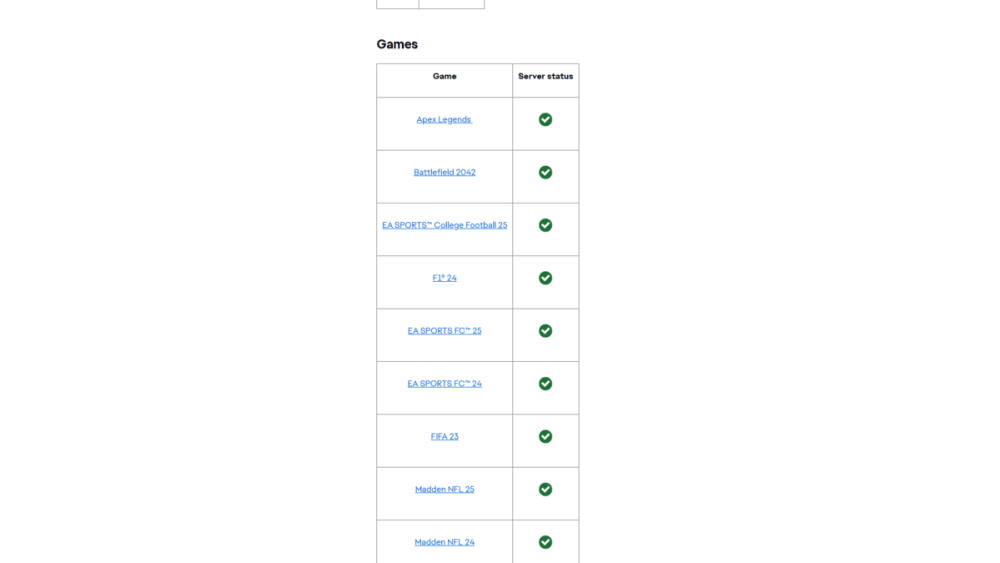
You might as well go directly to the source to start your search. While EA isn’t always the quickest when it comes to updating the server status, you’ll usually get your answer by checking the official server website or its various social channels.
The official EA server status website specifically is the best route to take. The site showcases the status of every single game’s servers as well as the status of the EA App and EA Play. You can also check the server status of a specific system, which is a great resource if your PS5 version of CFB 25 is acting up but your friend on Xbox Series X|S is having no issue getting online.
If you want, checking the social media channels, namely X/Twitter, of CFB 25 is another way to check if the servers are down. Usually, the developers will post about any scheduled server maintenance to social channels, but they’re not great at updating the player base every time the servers go down randomly.
Visit Down Detector

Down Detector is a fantastic resource to check if literally any online game has gone down. The site operates by collecting community reports and if there are enough reports about a game’s servers going down, it will let you know there is likely an issue on the dev’s side of things. So if you see a spike in player reports on the site, you can safely assume your Internet connection is not to blame.
However, if you visit Down Detector and see that a majority of players are experiencing a normal connection, then you might want to check your system or Internet equipment.
How To Fix Server Problems In College Football 25
Now that you know the methods of checking the server status, it’s time to talk about what to do if the servers are malfunctioning.
Most of the time, there’s not much you can down about server issues in College Football 25. Usually, if the CFB 25 servers are down, the entirety of EA’s online library is also experiencing problems. However, there is a small list of fixes you can try to speed up the process of solving any server error you receive:
- Restart your CFB 25 application
- Power cycle your system
- Change your EA account password (weirdly works for some players)
- Clear your system’s cache
- Check for an update in College Football 25
- Check for any system updates that might be causing your game to go offline

Unfortunately, those are the only fixes you can try if the server issues are on EA’s side. In most cases, you just have to wait for the servers to come back online or for any scheduled maintenance to be completed.
However, what about if the server issues are coming from your end? If you’ve checked EA’s server site and Down Detector only to see there aren’t any server outages, then either your system or your Internet connection is at fault. In that case, try the following fixes to get back online in College Football 25:
- Perform a soft reset of your router/modem
- A soft reset requires you to unplug your router/modem from the wall and wait around three minutes. Then, plug it back into the wall and wait for it to power cycle.
- You can also attempt to hard reset the router/modem. This is done by pressing the small reset button on the device and waiting for it to come back online.
- If you’re hard-wired using an ethernet cable, attempt to switch your system to WiFi (your ethernet cable could be faulty)
- Check to see if you can get online through WiFi on your phone, computer, etc.
- If you can’t get online on any device, call your ISP and go through troubleshooting with them.
- If just your system can’t get online, power cycle your system, which is the same process as a soft reset of your router/modem.
- A hard reset of your system is generally not recommended, as it requires a full factory reset.
- Delete and reinstall College Football 25
Unfortunately, if the server problem does end up being on your end, it’s difficult to pin down exactly what’s to blame. It could be your ISP simply having an outage or an unknown issue with your system. Try all the fixes I laid out above and if none of them work, you might have to take more drastic measures. Hopefully, that’s not the case, though, as going through all that trouble to play online College Football 25 generally isn’t how you want to spend your day.


Published: Jan 23, 2025 03:26 pm