


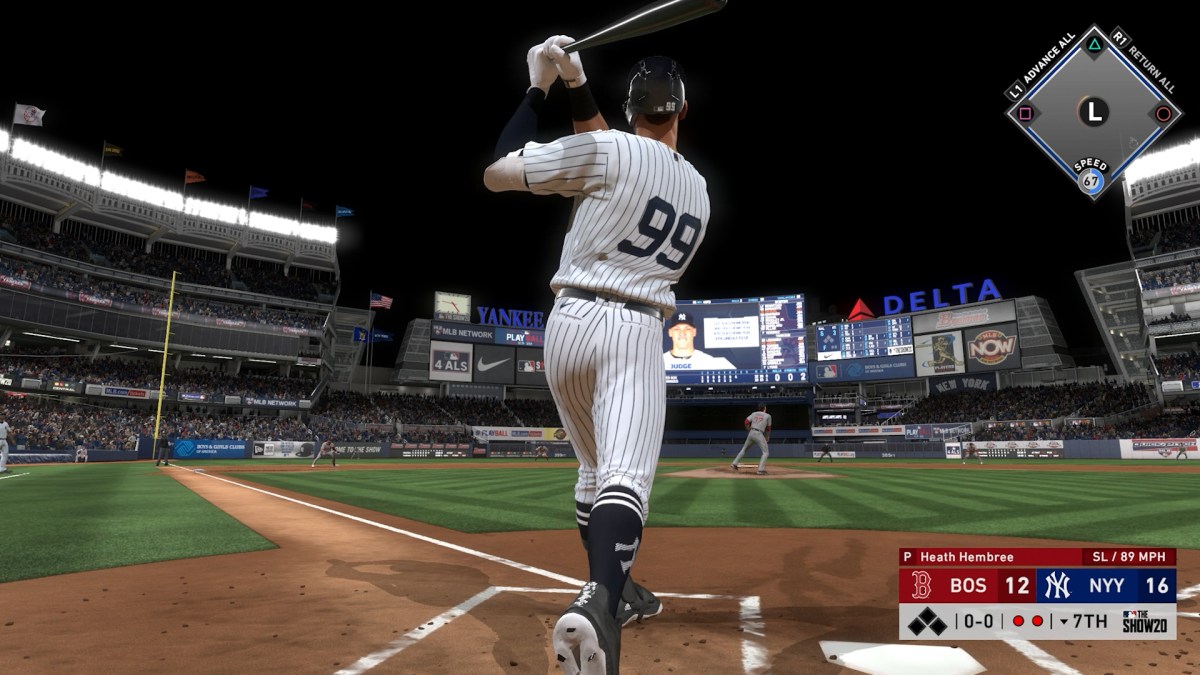
Being able to create and play in your stadium is one of MLB The Show’s biggest selling points. Players get tired of seeing the same rotation of stadiums every game. But with custom stadiums, you can design your own stadium to your heart’s content. That, or simply pick up some cool designs from the Vault.
To do all that, you’ll first need to learn how to download stadiums in MLB The Show 25. Stadiums won’t just automatically enter your library to choose from. However, there’s no need to worry, as the process is straightforward. So let’s break it down step-by-step.
Downloading Stadiums In MLB The Show 25


Operation Sports App
Your ultimate companion for sports gaming. Access in-depth coverage, thoughtful discussion, and a community built around the games—and sports—you love.
Your ultimate sports gaming companion.

- The first thing you’ll want to do in order to download stadiums is to access the Stadium Creator menu. You can view this menu at the top right corner of your home screen.
- Next, you’ll see several different options like Template Stadiums, The Vault, and My Stadiums. Hover over The Vault to see available stadiums.
- The Vault is split up into 3 sections:
- My Saves: This will show you in stadiums you have recently saved. These include all your personally-made custom stadiums.
- Recent Uploads: Recent uploads are more tailored towards the latest custom stadiums, giving preference based on upload date rather than popularity.
- Most popular: Here, you can search for your favourite stadiums by name or the creator’s online ID (in case you’re looking for a particular streamer’s stadium). This catalog has all the popular custom stadiums people have uploaded to the Vault, regardless of when they were uploaded.
- Once you’ve found the stadium you want to download, click the Preview option to get a better look at the stadium. Check out if everything is how you want it to be.
- Simply click Save to add the custom stadium to your Vault – My Saves collection. You can use that stadium in any of your matches from then on. Make sure it appears in your My Saves before you close it.
- You can edit or modify it going forward, as long as it meets the minimum requirements in MLB The Show 25.
This also works for stadiums you created in MLBTS’24, as it carries over with your account. All you need to do is upload it to the Vault from MLBTS’24. After that, open up MLBTS’25 and simply save it from the Vault — your custom stadium is ready to go.




Published: May 29, 2025 05:37 pm