

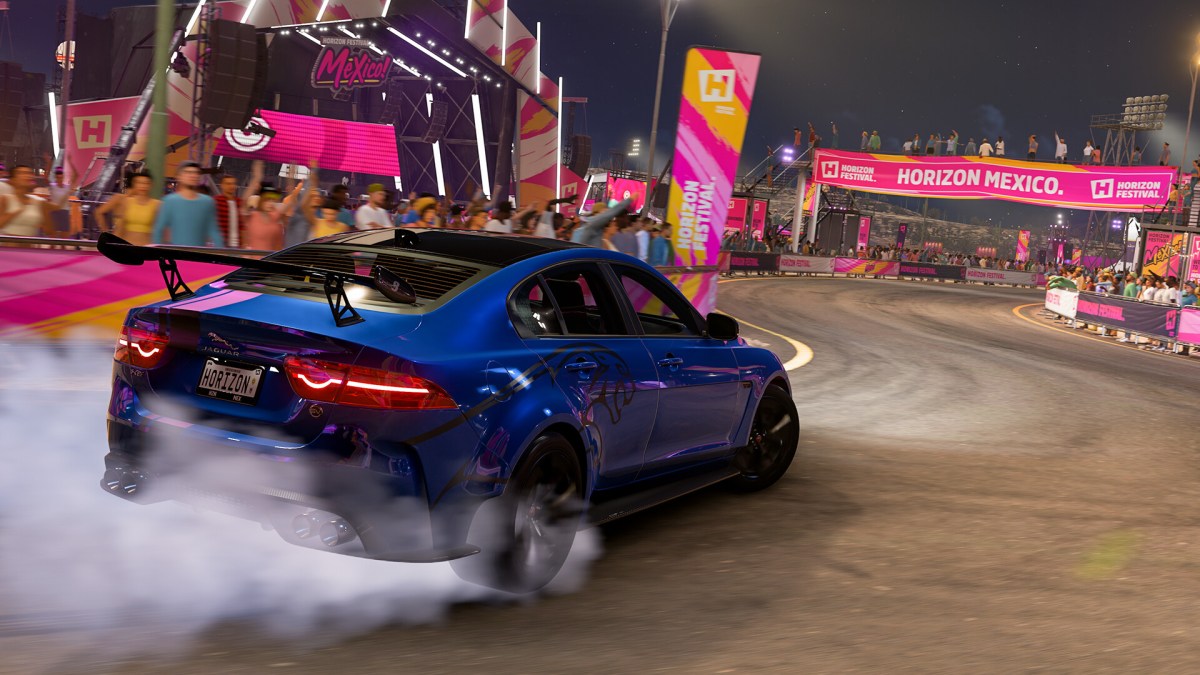

The Forza Horizon series has always pushed hardware to its limits and consistently delivers one of the most visually stunning and immersive racing games of its generation. The latest installment, Forza Horizon 5, is the definitive open-world racing experience. It’s one of those graphically impressive games that make you want to park your car for a while and admire the beauty of your surroundings.
Naturally, it’s not surprising that you’ll spend a considerable amount of time taking screenshots in this title. If you’ve got too many of these screenshots, they start to add up. Getting rid of these photos depends on what platform you’re on, so here’s a breakdown of how to delete screenshots in Forza Horizon 5 on Xbox, PC, and even the Steam Deck.
Deleting Screenshots In Forza Horizon 5 Directly


Operation Sports App
Your ultimate companion for sports gaming. Access in-depth coverage, thoughtful discussion, and a community built around the games—and sports—you love.
Your ultimate sports gaming companion.

Forza Horizon 5 offers an in-game photo mode that you can use at any time during gameplay to capture stunning shots at the exact moment. These pictures are not saved directly into your system. Instead, they stay within the game and you can post them for other players to see. Here’s how you delete screenshots in-game:
- To activate Photo Mode, press the D-Pad Up button on your controller, or the P key on your keyboard if you’re on a PC.
- Go to My Photos to view all the moments you’ve captured.
- Note that these shots are stored in the Forza Gallery within Forza Horizon 5 and won’t appear in your system’s media.
- From the gallery, you can delete unwanted photos or upload them directly to the Forza community for others to see and engage with.
- Select the photo that you want to delete, then click Delete to remove it from your gallery.
Of course, having a bunch of screenshots in-game that don’t even affect your console or PC’s storage is not a problem for most folks. So, if you’re instead looking to delete screenshots that are stored on your device directly, look to the sections below and follow the steps for your specific platform.
Deleting Screenshots On The Xbox Consoles

Managing screenshots on Xbox consoles is simple and easily doable through the console interface. Here are the steps you need to follow for deleting your Forza Horizon 5 screenshots, though this applies to any game in general:
- Press the Xbox button on your controller to bring up the navigation menu.
- Navigate to the Capture & Share section.
- Select Recent Captures to reveal snapshots you took a while ago, then click Show All.
- Click on Manage, then select all of the old Forza Horizon 5 screenshots that you want to delete.
- After selecting all the images, click Delete from the right sidebar to remove them from your Xbox permanently.
The above process applies to Xbox One X|S and Xbox Series X|S consoles. Since you’re essentially interacting with your Xbox interface, you can use the methods to delete screenshots for any game.
Deleting Screenshots On PC (Xbox Game Bar)

If you’re playing the game through Xbox Game Pass or you bought it from the Microsoft Store version, then chances are that you are using Xbox Game Bar to capture screenshots. By default, Game Bar saves your screenshots in the Captures folder, which can be found at:
C: \Users[Your Username]\Videos\CapturesNavigate to the above directory, and select any screenshots that you want to remove by right-clicking on the desired image. You could also drag your mouse over multiple screenshots or select them by pressing the Control key on your keyboard while clicking them. Finally, either press the Delete key on your keyboard or right-click and choose Delete from the drop-down menu. If you want to get rid of these images permanently, make sure to delete them from the Recycle Bin.
Deleting Screenshots On Steam Deck

Capturing screenshots on the Steam Deck is incredibly easy. By pressing the Steam and R1 buttons simultaneously, you can take a snapshot of the game you are playing. Accessing these screenshots to view them or delete them is just as easy. Follow the steps below to delete Forza Horizon 5 screenshots from your Steam Deck.
- Press the Steam button on your Steam Deck to open the main menu.
- Navigate to the Media section. This will display all the screenshots you’ve captured.
- Press the Menu button (three horizontal lines) similar to the Xbox controller.
- Select all the screenshots that you went to delete, then click Delete to permanently remove the selected screenshots from your Steam Deck.
Regardless of what device you have, deleting Forza Horizon 5 screenshots works the same way as it would for any other game. This same logic applies to the PlayStation 5 version of the game, which is launching very soon in April.


Published: Feb 28, 2025 02:08 pm