


The sounds from an NHL game are next to none in the sports world. From the crunching sound of players getting checked into the boards, to the distinct goal horn of every arena, you’ll want to have your sound turned up to the maximum at all times in NHL 25.
However, that might not apply to players on PlayStation 5, as the DualSense controllers tend to spew out a ton of unnecessary noise at random times. The most common complaint from PS5 players using a DualSense is the sheer volume of the in-game music while in a match. Whether it’s the goal music or just music during timeouts or stoppages, players are looking for any way to tune down the noise coming from their PS5 controllers.
How To Disable Controller Noise In NHL 25 On PS5


Operation Sports App
Your ultimate companion for sports gaming. Access in-depth coverage, thoughtful discussion, and a community built around the games—and sports—you love.
Your ultimate sports gaming companion.
If you’ve searched through your PlayStation settings and the NHL 25 menus, you’ve likely come up with no fix for the controller noise issue. While you can completely eliminate controller noise on PS5 — which we’ll explain how to do later — that can take away from the immersive experience in NHL 25. Hearing the extra volume of a goal horn can really get you pumped up or immensely frustrated depending on who just scored.
Fortunately, there actually is an in-game setting in NHL 25 that allows you to adjust the volume of the controller noise during games. This gives you the ability to slide the volume meter to whatever value you like. The slider comes in especially clutch if you’re in a voice chat party with a friend, as the controller noise can often drown out your friend’s voice.
To adjust the controller noise in NHL 25 on PS5, follow the steps below:
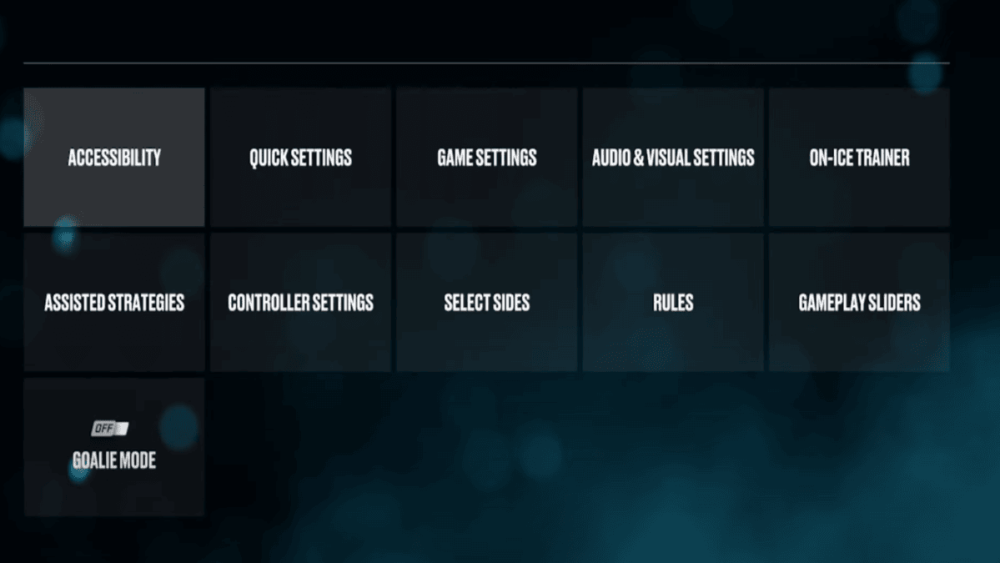
- Launch NHL 25 and go into the settings menu
- Navigate to the Audio and Visual Settings box
- Find the “Volume Settings” section in this tab
- Scroll until you see the option for “Controller Volume”
- Next to that option, there will be a slider that you can decrease all the way to zero if you don’t want any sound coming from your controller
- You can also move it up to one or two if you want a minimal amount of controller noise
- If you turn off your PS5 and relaunch NHL 25, you might have to adjust the meter again. Sometimes, the meter resets itself after NHL 25 closes (oh, EA).
Now that you know where to find that specific setting for your controller volume, you shouldn’t ever have another issue with it in NHL 25 again.
How To Stop All Controller Noise On PS5
Of course, if you truly dislike any volume coming from your PS5 controller at any time, you can completely disable all noise on it. This will eliminate controller noise in NHL 25, as well as any other game on PS5. While some players might not find this option attractive, as other games utilize PS5 controller volume better than NHL 25, it’s an option I wanted to share:
- With the PS5 on and running, click the PS button in the middle of your controller
- Go to the Accessories tab and press the “Controller” option
- Here, find the Sounds menu and lower the controller volume meter all the way down
- You can readjust this setting from any game or the main PS5 menu
So there you have it, that’s all the ways to eliminate the controller noise on PS5 in NHL 25. While I’ve certainly gotten used to the goal music by now, I can absolutely understand why you might want to turn it off or at the very least, lower its volume. Hearing KernKraft 400 play after a Bruins goal will never not get my adrenaline flowing, but I fully understand the desire to turn down the volume if Chelsea Dagger comes on in the United Center.


Published: Feb 3, 2025 02:58 pm