


As usual, the shot meter is an integral part of the mechanics in NBA 2K25. It’s been a mainstay in the franchise for several years, and players have grown accustomed to using it. The shot meter’s main goal is to give players more control over the accuracy of their shots, allowing players who have mastered the mechanic to sink bucket after bucket from anywhere on the court, within reason.
While the shot meter is still largely the same in NBA 2K25, the developers did make some subtle changes to how it works by default. These changes to the meter haven’t been overly well-received by the community, and many players have asked if they’re able to change it back to the original version. Thankfully, the developers haven’t left players with an unchangeable shot meter. However, the devs also don’t explain how to change the shot meter very well in-game, so allow me to show you.
How To Change The Shot Meter In NBA 2K25


Operation Sports App
Your ultimate companion for sports gaming. Access in-depth coverage, thoughtful discussion, and a community built around the games—and sports—you love.
Your ultimate sports gaming companion.
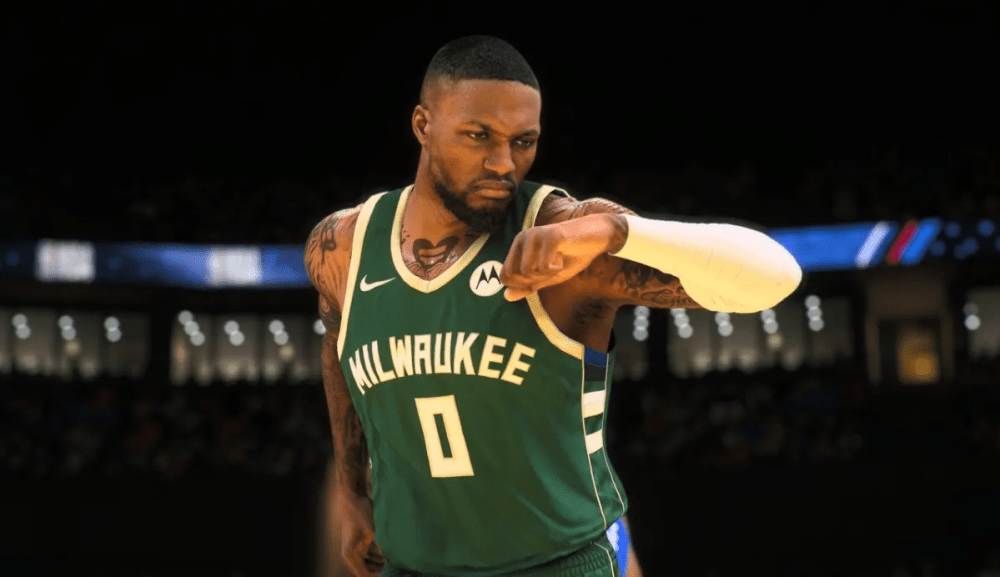
There are several elements of the shot meter you’re able to change. This includes when the shot meter appears, the type of meter that’s displayed, the color of the meter, the size of the meter, and where the meter shows up on your screen. Fortunately, all of these elements are fully customizable in NBA 2K25, and you can mostly get the shot meter from the older games with a few modifications.
If you’re a newer player, you could either choose to try and get used to the default shot meter or take some recommendations on how to set up the meter, which I’ll list later on in this guide. However, veterans of 2K know exactly how they like their shot meter to look and function, so you can see exactly how to change the elements of the mechanic in the steps below:
- Go to the main menu in NBA 2K25 and select the “Features” section
- On this screen, choose “Customize HUD,” which you can find near the bottom of the screen
- Select “Shot Meter Shots” from this screen and you’ll be brought to the shot meter customization screen
- Here, you can change several different shot meter options, including:
- Visibility for Shots
- Visibility for Layups
- Visibility for Free Throws
- Graphic
- Color
- Size
- Placement
- When you hover over each option, you’ll see what it looks like to the right of the menu so you have an idea of what you’ll see in-game
- Once you have made all of your selections, simply back out of the menu and hop into a match to see your new Shot Meter in action
You’re also able to change your shot meter during the middle of a game. To do this, pause the game, click “Options,” and then select “Customize HUD.” From there, it’s the same steps as before, so make your changes to the shot meter and unpause the game to see your new shot meter. The changes are applied instantly, so feel free to experiment with a variety of options quickly to easily see what you like and what you don’t like.
Even if you’re set in your ways as a grizzled 2K player, you might as well try out some of the shot meter options to gauge whether you like them better or not. If you don’t, then there’s no harm done. However, if you happen to like one of the options more than your old settings, more power to you.
Best Shot Meter Settings In NBA 2K25

Now that we’ve covered how to change the shot meter, let’s go over the best overall settings for your shot meter in NBA 2K25. While this does mostly come down to preference, I’ll still list what I feel are the best settings for any type of player. Newer players will benefit more from these settings, but if you’re a veteran looking to shake things up, why not try out a new shot meter?
You can see my recommendations for the shot meter below:
- Visibility for Shots – OFF
- Visibility for Layups – ON
- Visibility for Free Throws – ON
- Graphic – ARROW
- Color – WHITE
- Size – MEDIUM
- Placement – TO THE SIDE
As you can see, I actually recommend turning the shot meter off when taking a jump shot (in fact, I’d say most of us on OS prefer this method). This has proven to increase your green window and allows you to hit more shots consistently.
It will take a bit of practice to get the shot timings down without the meter, but once you understand the basic mechanics of shooting, you won’t need the shot meter and your green window will be far more lenient. If you’re a new player, leave the shot meter on while you’re learning how to play, but as soon as you feel comfortable enough with shooting, turn it off. You can still leave the shot meter on for layups and free throws so you don’t brick an easy two points, though.
The rest of the shot meter settings are almost all personal preference. It’s usually recommended to have the shot meter located to the side so it doesn’t take up too much space on your screen and distract you. The graphic, color, and size are all up to you. Check out each option, see which one you like the most, and then roll with the settings from there in NBA 2K25.
That does it for our guide on changing your shot meter in NBA 2K25. While most players do prefer to turn the meter off, do whatever works best for your game.


Published: Mar 4, 2025 09:56 am